

PBXMate is targeted for providers of conferencing solutions, developers and operators of VoIP solutions and organization looking to cancel echo and noise in their phone calls. PBXMate is a software product and can be used without making any change to the hardware. PBXMate is equipped with advance noise reduction and server-side echo cancellation algorithms. PBXMate also monitors the quality of the network and provides real-time visual alerts when quality drops in any of the calls. SoliCall’s PBXMate can be easily integrated in any network that has an interface to the common SIP standard. With PBXMate’s plug-and-play technology you can start cleaning calls within few minutes without changing your hardware.
PBXMate displays real-time statistics on calls in progress and aggregated statistics on all the calls that were processed. In addition, PBXMate provides data on daily usage per extension. You can use this information to appreciate the improvement provided by PBXMate and also to gain control and insight on call quality parameters in your organization.
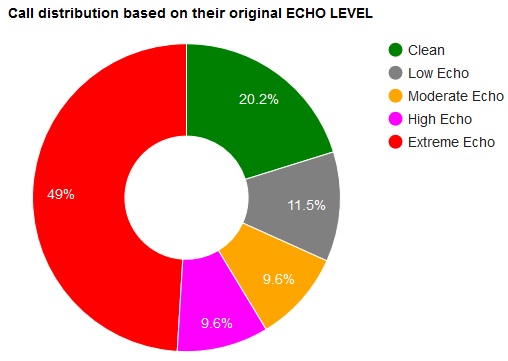


Some of the benefits for conference bridges, VoIP developers and operators:
• Remove noise from calls entering a conference bridge and enhance audio quality in conference calls.
• Server side Echo Cancellation and Echo Suppression.
• Assure comfortable audio level in all conditions.
• Real-time monitor of call quality (noise level, echo level, jitter, packet loss etc.).
Who is using PBXMate Classic ? PBXMate is used world-wide by variety of companies to improve audio quality in their network. For example it is used by a big telephony operator in Mexico, a big conference call provider in Europe, providers of VoIP for intercoms and kiosk and many others.
Contact us to discuss your requirements and we will be happy to share our experience, best practice, relevant case studies and an evaluation version.