简体中文   |   日本語   |   Contact
 
Integrating SoliCall Pro With VoIP Programs


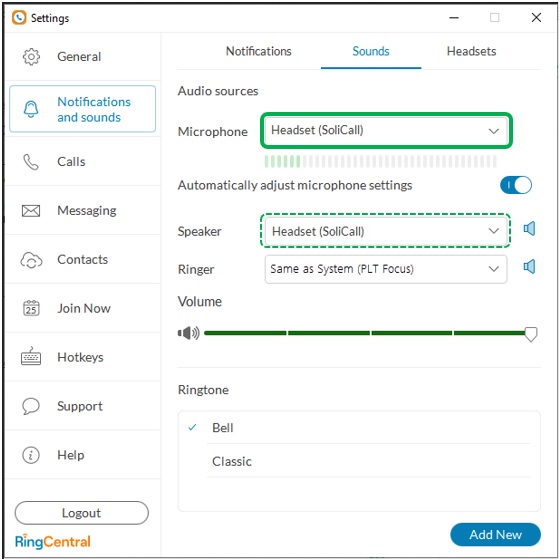
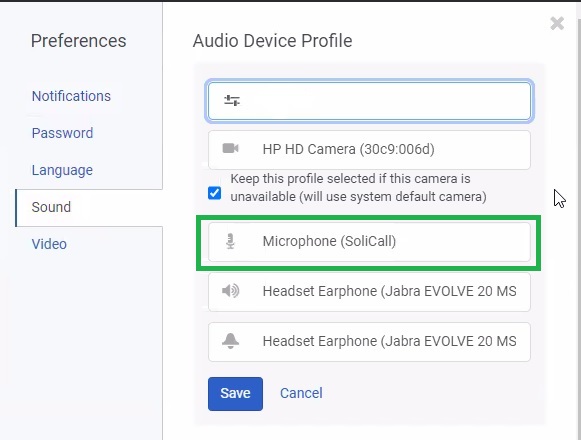
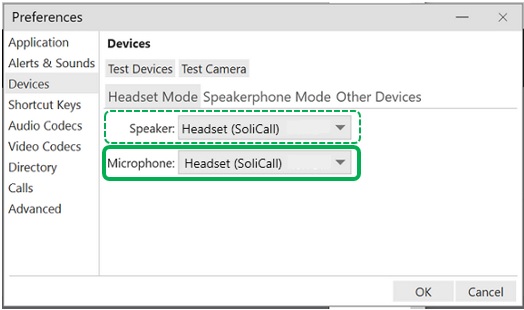
Before integrating your VoIP program, you need to configure SoliCall to the microphone / speakers you want it to work with.
Go to SoliCall menu: Tools --> Options. And choose the Sound Devices you are using with your VoIP program.


In some cases, Windows automatically changes the default audio device to be SoliCall.
Therefore, we recommend you verify that your default audio device (Playback & Recording) was
not changed. This can be done by looking at the Sound panel in the control panel.


Now, you can go on and configure your VoIP program.


Skype
Yahoo! Messenger
Google Talk
Windows Live Messenger / MSN Messenger
Other


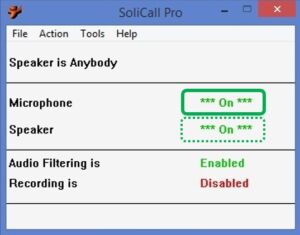
Finally, to test your configuration, open the main screen of SoliCall and make a call. You should see that
both microphone and speaker indicators turn ON.


Skype


Note: For best audio quality we recommend using Skype version 5.

To set up SoliCall, go to Skype menu: Tools --> Options --> Audio Settings

Set the Microphone and Speakers to "SoliCall" and click 'Save'


Yahoo! Messenger

To set up SoliCall, go to Yahoo! Messenger menu: Messenger --> Preferences --> Video & Voice.
Just set the Microphone and the Speakers to "SoliCall", then click Apply and OK.


Google Talk

To set up SoliCall for Google Talk, click the Settings link. In the Settings dialog select 'Audio' on the left side
On the Input - microphone or headset drop down list select "SoliCall". On the Output - speakers or headset, under the subsection Calls, select "SoliCall Audio Device". Then click OK.


Windows Live Messenger / MSN Messenger

To set up SoliCall for MSN Messenger, go to the menu:
Tools --> Audio and Video Setup (for Version 7.5 and higher) or Audio Tuning Wizard. Click 'Next'.

On the Step 1: Speaker Setup drop down list select "SoliCall".


On the Step 2: Microphone Setup drop down list select "SoliCall". Click 'Next' until setup is finished


Other
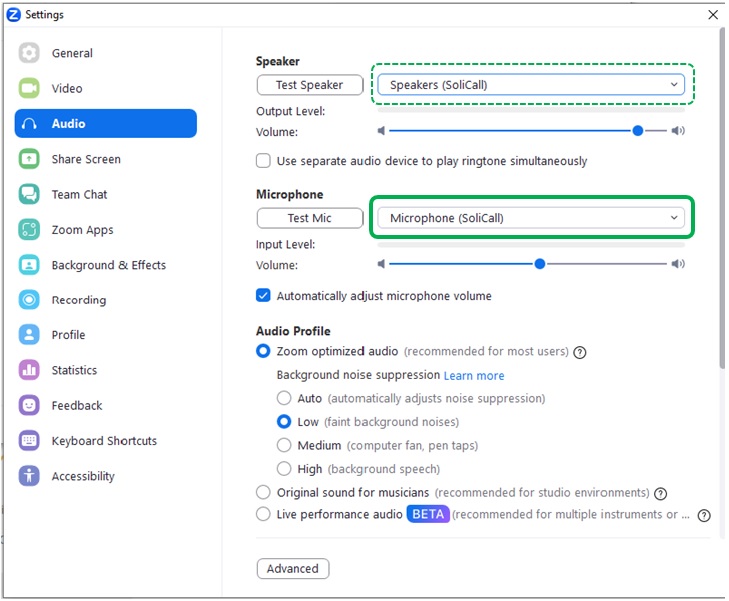
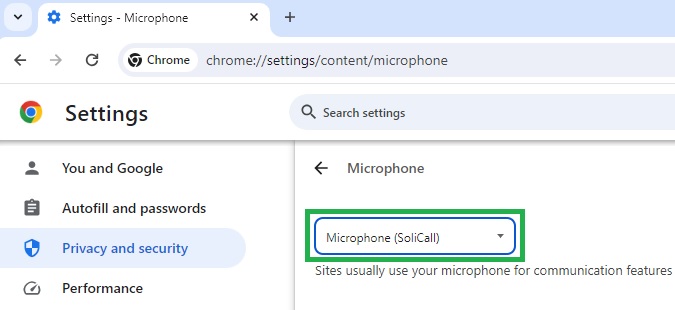
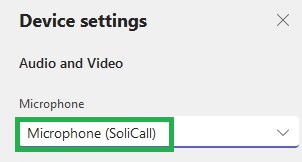
To set up SoliCall for other VoIP programs, go to the program's main window, look for the audio
settings (usually through settings/tools-options/preferences) and change the Audio In (microphone)
and the Audio Out (speakers) to SoliCall.
 
Copyright© SoliCall Ltd. All Rights Reserved.
SoliCall is a leading provider of noise reduction, echo cancellation and quality monitoring software for mobile phones, IP PBXs and other VoIP solutions.